Game Hub Download: Safe Guide & Review 2026
Looking for a safe Game Hub download in 2026? Grab the official GameSir GameHub from Play Store or the site, figure out how to run your Steam and PC games on Android, sort out the real safety worries, and see how it compares to Winlator. Step-by-step inside.
Emily, picture yourself curled up in Abbottabad on a quiet January evening, phone glowing in the dark, flipping through your Steam library and thinking—man, it’d be amazing to play some of these on the couch without dragging the laptop out. That exact feeling is what pulls so many people toward searching “game hub download” lately.
The GameSir GameHub app shows up as this handy little bridge that lets your Android phone tap into PC gaming—partly by running Windows stuff right there on the device, partly by pulling games you already bought on Steam, and partly by streaming them over the internet when your phone can’t handle the heavy lifting itself.
I spent time checking the official spots, reading through what actually happens on real phones in 2026, and weighing it against the other apps people keep mentioning. Let’s walk through it together so you can decide if it’s worth your time and storage space.
Key Takeaways
Game Hub—full name GameSir GameHub—is an Android app that opens the door to playing a bunch of your PC and Steam games straight on your phone, mixing local emulation with cloud and remote streaming. Stick to the Google Play Store or gamehub.xiaoji.com for the download—everywhere else is a gamble with fakes. If your phone has a Snapdragon 8 Gen 2 or newer chip you’ll get playable speeds on games like GTA classics or Resident Evil remakes.
It hooks into Steam more smoothly than most free tools, though the long list of permissions makes privacy-minded folks pause. Pair it with a GameSir controller and only use games you own on Steam for the smoothest, guilt-free ride.
What Exactly Is Game Hub Download These Days?
Think of Game Hub as a single app that tries to solve the “I want my PC games on my phone” problem in three different ways at once.
One part uses a Wine-style layer to run Windows programs directly—no need for a full PC emulator. Another part logs into your Steam account, sees what you own, and either downloads compatible versions or streams them over the net. The third part is a cloud option that beams games from faraway servers when your phone’s hardware would choke.
The app really started turning heads around mid-2025 when it popped up on the Play Store. By 2026 the newer versions—5 and up—cleaned up the menus, cut down on random crashes, and made connecting your Steam account feel almost normal. It’s not just another launcher full of mobile-only games; this one is laser-focused on pulling desktop experiences over to Android.
Where’s the Safest Place to Grab Game Hub?
Rule number one: don’t click the first shiny download button you see.
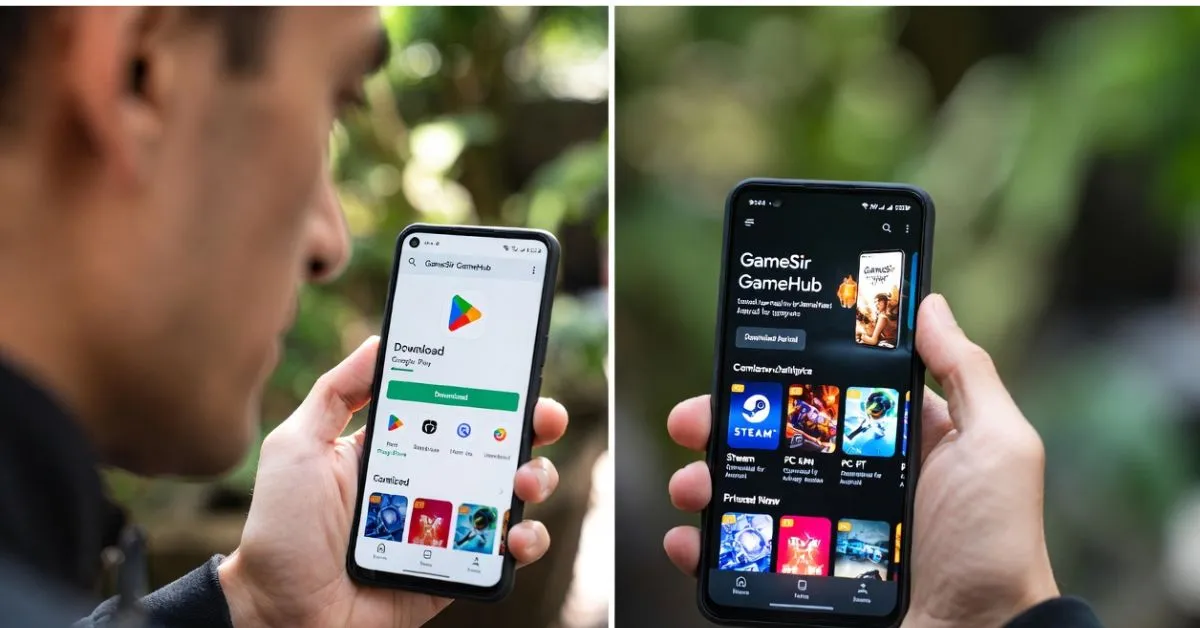
The simplest and most trustworthy path is opening your Play Store app right now, typing “GameSir GameHub,” and hitting install. You’ll see an official entry with well over a million downloads and a rating that usually sits between 3.9 and 4.0.
If the Play Store says “not available in your country” or you want the freshest build Google hasn’t reviewed yet, go directly to gamehub.xiaoji.com in your browser. That’s the developer’s own site and the APK link there is the real deal.
Steer clear of those random APK collection websites promising “Game Hub latest version unlocked.” A lot of them slip in extra junk—ads that won’t quit, trackers, or even different apps disguised as the real thing. If the page bombards you with pop-ups, asks for surveys, or just looks cheaply thrown together, back out fast.
How to Get It Installed Without Headaches
Installation is honestly pretty painless when you start with a good file.
For the Play Store route, just search and tap install like any other app. Once it’s done, launch it and follow the first-time prompts—usually just signing in with Google if it asks.
If you’re going the APK way because of region blocks or wanting the newest release, visit gamehub.xiaoji.com, find the download button, and save the file. Before you open it, head into your phone settings, find Security or Apps & notifications, and switch on “Install unknown apps” for whatever browser you used. Then tap the downloaded APK and confirm install—it normally finishes in under a minute.
Right after opening for the first time the app will request permissions for storage, internet, and screen overlays. Most of those are needed so emulation and streaming can actually function. If you own a GameSir controller like the G8 series, pair it now via Bluetooth or plug it in—the app usually recognizes it and sets up the buttons automatically.
Getting Your Steam and PC Games Running on the Phone
Open the app and look for the Steam button on the home screen—tap it and log in with your usual Steam credentials. It’ll scan your library and highlight games it thinks can work.
Games that already support Steam’s built-in Remote Play will stream over your Wi-Fi or mobile data. A solid 50 Mbps connection or better usually delivers smooth 1080p with barely noticeable lag.
For stuff you want to run locally, pick a game from the list—or add a standalone .exe file if it doesn’t have heavy DRM—pick your Wine configuration options, and hit launch. A few titles that tend to cooperate nicely:
GTA San Andreas and Vice City hit a steady 60 frames even on mid-tier phones. The 2005 Resident Evil 4 remake manages 40–50 FPS once you dial settings back a bit. Portal and Portal 2 feel buttery smooth on Snapdragon 7-series chips. Older single-player games like Fallout 3 become playable after dropping resolution and turning off fancy effects.
Newer blockbusters loaded with anti-cheat or complex DRM often refuse to start in emulation, so that’s when you lean on the cloud streaming fallback.
What Kind of Phone Do You Actually Need?
Emulation isn’t magic—it leans hard on your hardware.
For solid results aim for: A Snapdragon 8 Gen 2, Gen 3, or high-end Dimensity chip. At least 8 GB of RAM—12 GB gives you breathing room. Plenty of free storage—10 GB minimum after the app itself. A phone with decent cooling so it doesn’t throttle after twenty minutes.
On a good Snapdragon 8 Gen 2 device you’re looking at 30 to 60 FPS in most supported games at medium detail and 720p to 1080p. Emulation chews battery fast—expect to lose 15–20% every half hour—so plug in or keep a power bank handy. The cloud mode sips power instead, but it lives or dies by your internet.
Should You Worry About Safety and Privacy?
This comes up every single time someone mentions the app.
The version you get from Play Store or the official website has been run through antivirus tools by lots of people and no major malware has turned up in the clean builds. Google Play Protect does throw up warnings now and then, but that’s standard for anything that acts like an emulator—it wants access to overlays, full storage read/write, network stuff, and more.
Because the developer is based in China the app includes the usual analytics and crash-logging bits you see in many apps from that region. If that makes you uncomfortable you can restrict its internet after everything’s set up or install a simple firewall app to block anything suspicious going out.
The biggest actual risk? Downloading from shady mirrors that swap the real app for something nasty. Stay with the official paths and you’re in a very safe spot.
How Does It Stack Up Against Winlator and Mobox?
Quick head-to-head so you can pick what fits:
Game Hub shines with dead-simple Steam login, a built-in cloud safety net when emulation stumbles, official updates, and great controller support out of the box. Trade-off: it asks for more permissions and can feel a little less stable on some phones.
Winlator is totally free, open-source, and super tweakable—you can fine-tune Wine settings until the cows come home. Downside is the setup takes longer, there’s no easy Steam tie-in, and crashes happen more often for beginners.
Mobox handles certain classic Windows games really well thanks to ongoing community fixes. It’s just that the look and feel haven’t aged as gracefully, and it doesn’t have the same polish or official backing.
If you mainly want to jump into your existing Steam collection with minimal fuss, Game Hub usually comes out ahead. If you love digging into settings and don’t mind a steeper learning curve, Winlator still has plenty of fans.
Fixing the Most Common Headaches
Game won’t start after selecting it? Drop the resolution, turn off anti-aliasing, or try a different Wine profile in the settings menu—most crashes clear up that way.
Your Steam library looks empty even after logging in? Sign out completely, close the app fully, reopen, and log back in. Also double-check the game is tagged as Steam Deck playable—lots are.
Controller buttons doing nothing? Reconnect via Bluetooth, make sure the GameSir companion app has the latest firmware, or switch to wired USB-C mode.
Can’t play when you’re offline? A handful of DRM-free or older games run fine after the first online check-in, but anything tied to Steam usually wants occasional verification. Cloud mode won’t work without data.
Where Mobile PC Gaming Might Head Next
The folks updating Game Hub aren’t sitting still—newer betas already show smoother frame timing, longer compatibility lists, and beefier cloud servers. Meanwhile big cloud platforms like Xbox Cloud Gaming and GeForce Now keep dropping prices and boosting quality, so down the road we might not even need heavy local emulation as much.
Right now Game Hub hits a sweet spot for anyone who’s built a Steam collection over the years and wants to enjoy it away from the desk—whether that’s lying in bed, waiting at a chai spot, or traveling without extra gear.
FAQs On Game Hub Download
Where can I download Game Hub Download officially?
Head to the Google Play Store and search “GameSir GameHub” or visit gamehub.xiaoji.com directly. Those are the only two places that give you the real, unmodified file. Random APK download sites often push altered versions loaded with ads, trackers, or worse—always check the developer name matches before you install anything.
Is Game Hub Download safe to use in 2026?
The clean version from Play Store or the official site looks safe—no solid reports of malware in legitimate downloads after antivirus checks. Play Protect flags are normal for emulators because they need lots of permissions. If you’re extra careful about privacy, block its internet after setup or use a firewall app to control what it sends.
Does Game Hub Download require a powerful phone?
For proper emulation you really want a Snapdragon 8 Gen 2 or newer chip with at least 8 GB RAM. Weaker phones can fall back on cloud streaming, which leans on your internet instead of raw power. Anything older than that will struggle hard with bigger games even on the lowest settings.
Can Game Hub Download play Steam games offline?
A few DRM-free classics and older single-player titles run offline once you’ve synced them the first time. Most Steam games need that initial online check and might ask to phone home now and then. Cloud streaming always demands a connection. Single-player games without always-online DRM give you the best offline shot.
How does Game Hub Download compare to Winlator?
Game Hub feels more beginner-friendly with its quick Steam login and cloud backup when emulation gets tricky. Winlator lets you tweak everything under the sun and shines with certain older games, but setup takes longer and it crashes more until you dial it in. If you just want to play your Steam stuff fast, Game Hub edges it out.
Why does Game Hub Download show Play Protect warnings?
Anything acting like an emulator asks for deep permissions—overlay control, full storage access, network stuff—which sets off Google’s automatic alarm. The official release passes manual scans from antivirus companies. Download only from Play Store or gamehub.xiaoji.com and those warnings are almost always harmless false positives.
So there it is, Emily—the straight talk on Game Hub download and whether it’s worth your time in 2026. If you’ve got a solid Android phone and some Steam games collecting dust, pop over to the Play Store right now, grab the official app, follow the quick setup, and give it a spin. Keep downloads to verified sources, temper expectations on brand-new AAA titles, and enjoy the freedom of playing your library wherever you are. Drop me a note if you run into any snags—happy gaming!